

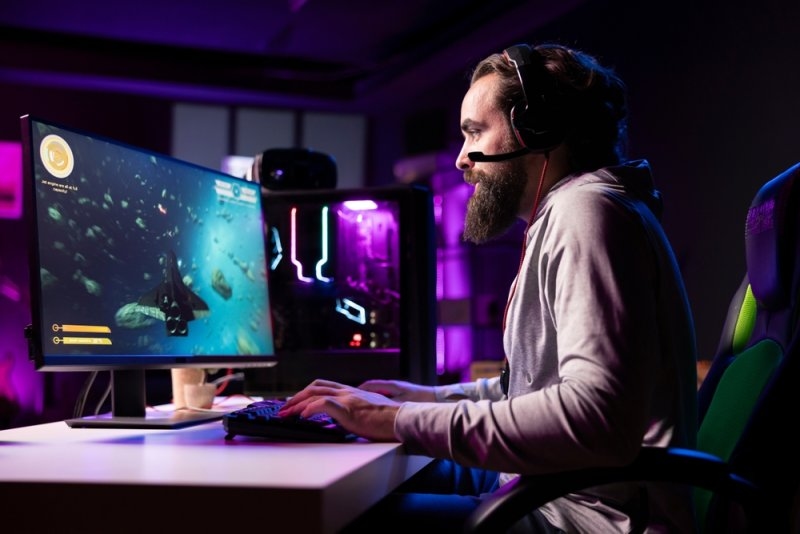
Honestly, even the best gaming monitors won’t feel right if their settings don’t line up with your rig. Too much brightness? You’ll lose details. Use the wrong scaling, and text and menus just look off. Drop the refresh rate, and everything feels sluggish—even on a powerful PC. There’s no single “perfect” setup for everyone. It comes down to your display, your graphics card, the kinds of games you play, how your space is lit, and, honestly, what you prefer.
You won’t find a magic preset here. Fast-paced shooters and story-heavy RPGs need totally different setups. What you’ll find instead are practical tips—how to tweak resolution, refresh rate, response, calibration, and even where to put your monitor for the best experience.
Start with the settings that affect image quality and motion first. Then adjust brightness, contrast, color, and gaming features. Changing everything at once makes it difficult to know what actually helped.
For this guide, the recommendations are based on common gaming displays and practical testing logic: prioritize native resolution, stable refresh, sensible response settings, and comfortable viewing rather than blindly pushing every slider to maximum.
The best resolution for gaming is usually your monitor’s native resolution. If you’ve got a 1080p monitor, set it to 1920×1080. For 1440p, stick with 2560×1440. And if you’re lucky enough to have a 4K screen, 3840×2160 is the sweet spot.
Lowering your resolution will boost your frame rate, but things start to look a bit blurry. With a mid-range graphics card, you’ll usually get solid performance at 1440p, but 4K might be too much, especially in newer or more demanding games. In that case, playing at 1440p with smooth frame rates is a lot more enjoyable than choppy performance at 4K.
When it comes to refresh rate, go for the highest your monitor and system can maintain without dips. Jumping from 60Hz to 144Hz or 165Hz makes a world of difference in fast-paced games—it just feels smoother.
If you care about every split second, like in competitive shooters, 240Hz (or higher) can really help you see every frame and react faster. But it only helps when the PC produces enough frames to take advantage of it.
Check Windows display settings, your GPU control panel, and the monitor menu. Sometimes a new monitor remains at 60Hz until the correct refresh rate is selected manually.
Response time vs refresh rate is often misunderstood. Refresh rate describes how frequently the display can update the image. Response time describes how quickly individual pixels change between colors.
A 240Hz monitor with poor pixel response can still show ghosting. Likewise, a very fast response time does not automatically make a 60Hz display feel like a 240Hz screen.
For the best monitor settings for gaming, use a moderate response-time or overdrive setting first. Extreme modes can create inverse ghosting, where bright trails appear around moving objects.
Also Read: Cloud Gaming Optimization Tips for Faster Gameplay
Learning how to calibrate monitor settings is less complicated than it sounds. Begin with brightness, contrast, gamma, and color temperature before touching specialized gaming modes.
Turn off overly aggressive “dynamic” picture features while calibrating. They can change the image automatically, making comparisons difficult.
Brightness should match your surroundings, not simply sit at 100%. In a dark room, excessive brightness causes eye strain and makes black areas look less convincing. In a bright room, very low brightness can hide shadow details.
Open a game with dark scenes, then adjust until details remain visible without the screen looking gray. That is usually a better starting point than copying someone else’s number.
Contrast can improve separation between dark and bright areas, but pushing it too far clips details. For color, start with the monitor’s standard or sRGB mode if available. Vivid modes can look impressive in a store yet oversaturate games at home.
The best monitor settings for gaming should make enemies and environments easy to distinguish, not simply make everything brighter.
HDR can improve supported games with brighter highlights and deeper contrast. But HDR implementation varies widely between monitors. If HDR makes desktop colors dull or highlights look strange, compare SDR and HDR in an actual supported game.
Keep whichever produces the more convincing image on your particular display.
The best monitor position for gaming keeps the screen directly in front of you with minimal neck movement. Your eyes should generally meet the upper portion of the display while your head remains relaxed.
Distance matters too. Sitting extremely close makes a large monitor tiring to scan, while sitting too far away reduces detail and can encourage leaning forward.
A useful setup is:
Small positioning changes can improve comfort more than another round of graphics tweaking.
Don't Miss: The Evolution of 3D Graphics in Video Games and Art Styles
Once the basic display settings are correct, check gaming features. Adaptive sync is your friend if your frame rates bounce around. It helps cut down on screen tearing and makes gameplay look less choppy, even when things aren’t perfectly consistent.
Now, fine-tuning your gaming monitor mostly boils down to your setup and what you’re playing. Here’s a quick rundown:
| Setting | Competitive Gaming | Story Games | General Recommendation |
|---|---|---|---|
| Resolution | Native | Native | Use native first |
| Refresh Rate | Highest stable | Highest stable | Enable maximum supported |
| Overdrive | Medium | Medium | Avoid extreme modes |
| Adaptive Sync | On | On | Use when supported |
| HDR | Game-dependent | Often useful | Test per game |
| Brightness | Moderate | Moderate | Match room lighting |
Don’t just turn on every feature. For example, motion blur reduction can help competitive gamers, but it sometimes lowers brightness and might not play nice with adaptive sync. So, test and tweak until you find what feels right.
Suggested Reading: Best 15 Fortnite Tips to Win More Using Smarter Movements
The best approach? Find settings that balance clarity, performance, and comfort—without causing new headaches. Use your display’s native resolution, set the refresh rate as high as you can, and tweak response times just enough so motion feels smooth. Then, fine-tune brightness, contrast, and color to fit your room and the games you play.
Let your hardware lead the way. Change one thing at a time, stick with the tweaks that actually make things better, and don’t bother with useless features. That’s how your monitor settings start working for you.
Size doesn’t affect FPS on its own. What really matters is resolution—higher resolution means the GPU has to work harder. A big monitor does change how resolutions and viewing distances feel, but it won’t speed up or slow down your games.
Game Mode sometimes cuts down processing or adds gaming features, but not all monitors do this well. Try it in your favorite games, see how it feels, and check if image quality or controls change—then decide if it’s worth keeping on.
A better monitor won’t suddenly turn you into an amazing aimer. But when you’ve got a high refresh rate and smooth visuals, it’s definitely easier to track things moving across the screen.
No need to tweak everything each time. Leave core settings like native resolution and refresh rate alone. It’s worth adjusting HDR, gamma, or color, though, if a particular game looks odd or isn’t clear enough.
A second screen does use a bit of GPU power, especially if you play videos or run heavy apps on it. On modern PCs, the hit is small. But if your system’s already running close to its limits, background stuff on the second display might slow your games down just a little.
This content was created by AI